Adding a traffic source
If you are not yet familiar with the concept of traffic sources, we suggest reading that documentation before going any further.
Some traffic sources come natively configured in Webmarketer — the five NAT (Non Ads Traffic) sources:
- Social
- Organic
- Referrer
- Chatbot
- Direct
Those traffic sources are present by default when a project is created and cannot be deleted.
Adding a new ad platform traffic source
All of your advertising traffic sources are managed from the "Traffic sources" menu.
That page lists every source added to your Webmarketer project:
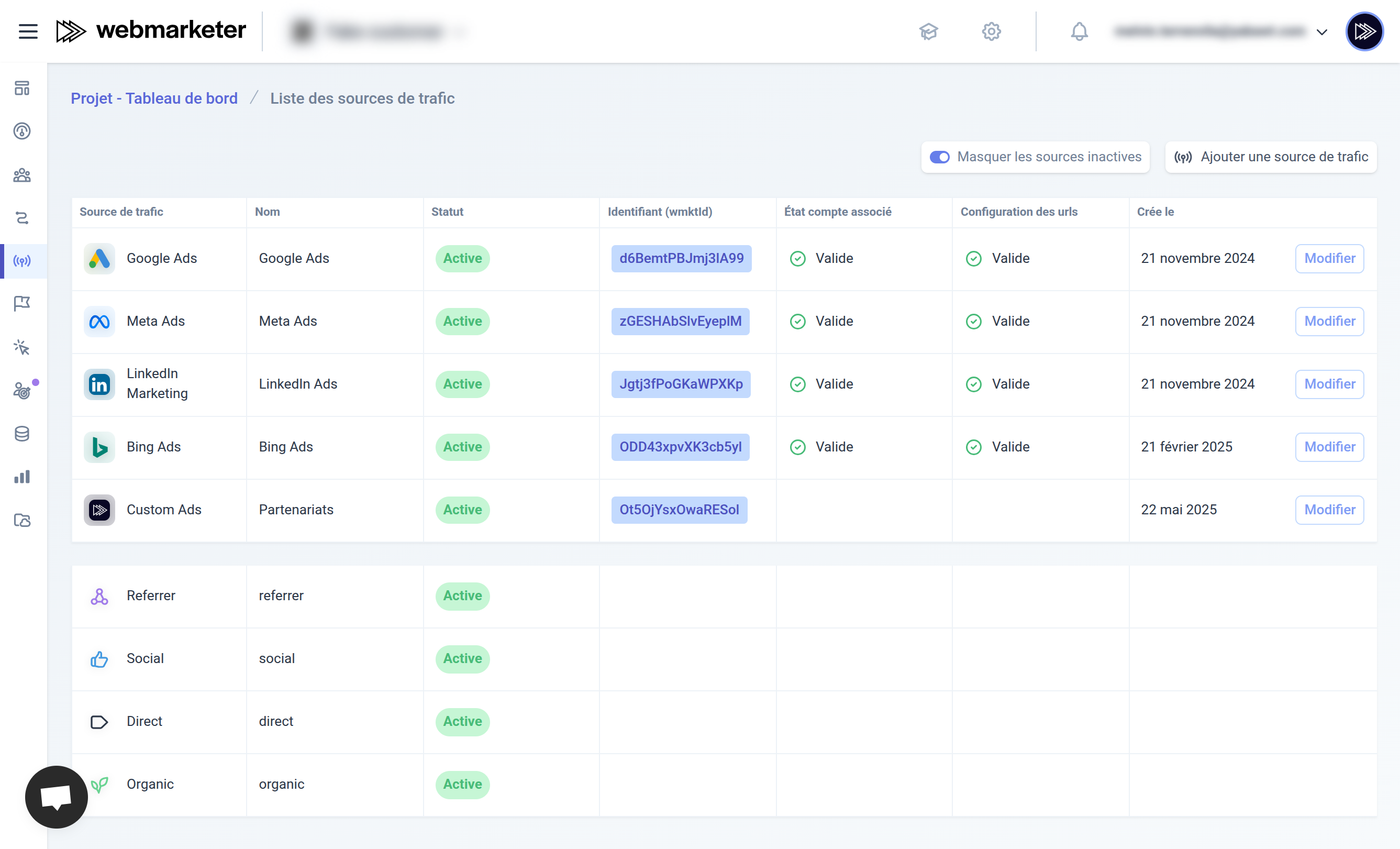
Click "Add a traffic source" to start linking a new ad account to your project.
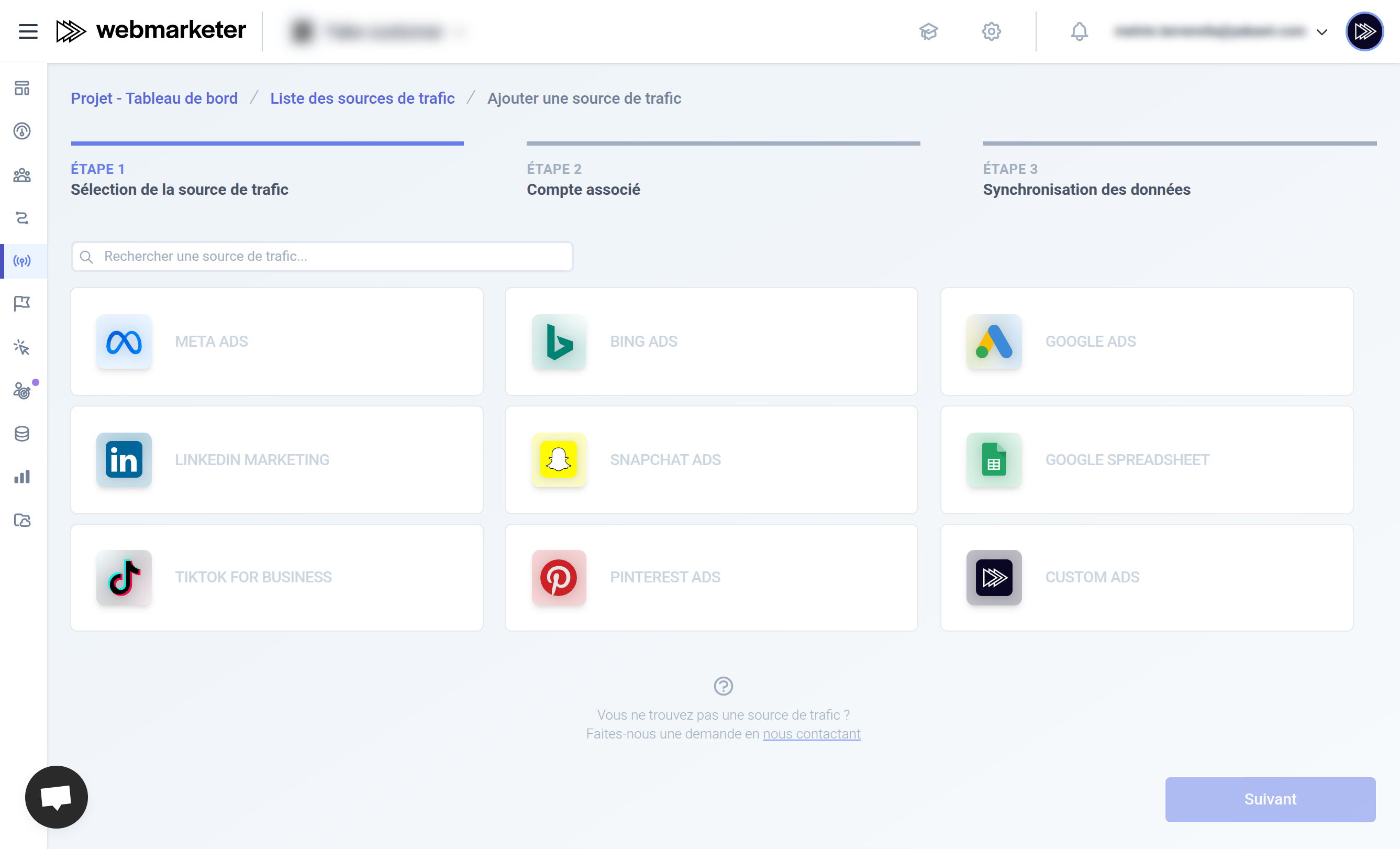
The list of ad platforms grows over time; if some of your sources are not available, feel free to reach out to support to let us know what you need.
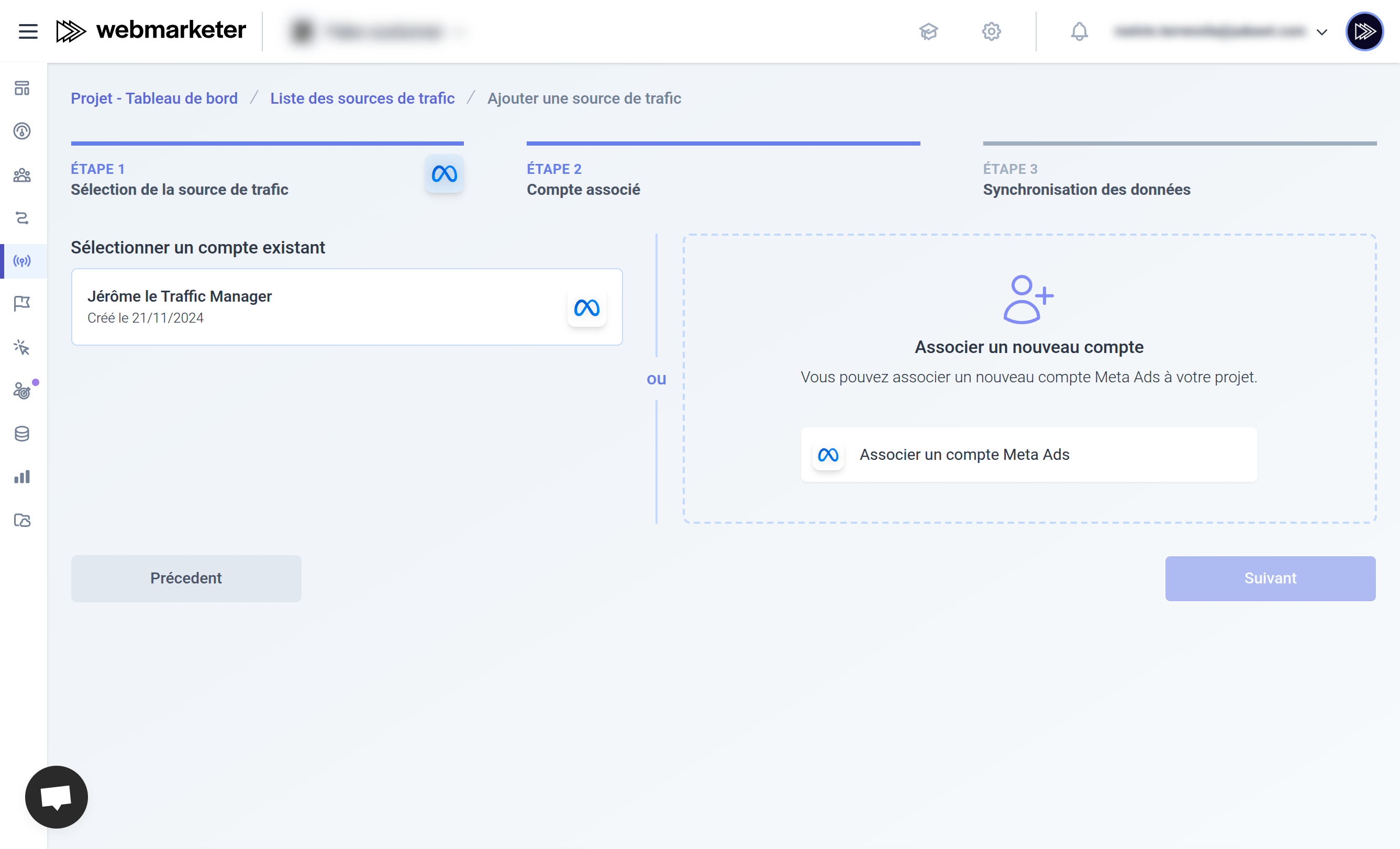
Once the ad platform is selected, you then have to choose the user account to use for importing data from the platform. That account must have access to the ad accounts you want to import into Webmarketer. If an account has already been linked to your project for a given ad platform, you can reuse it.
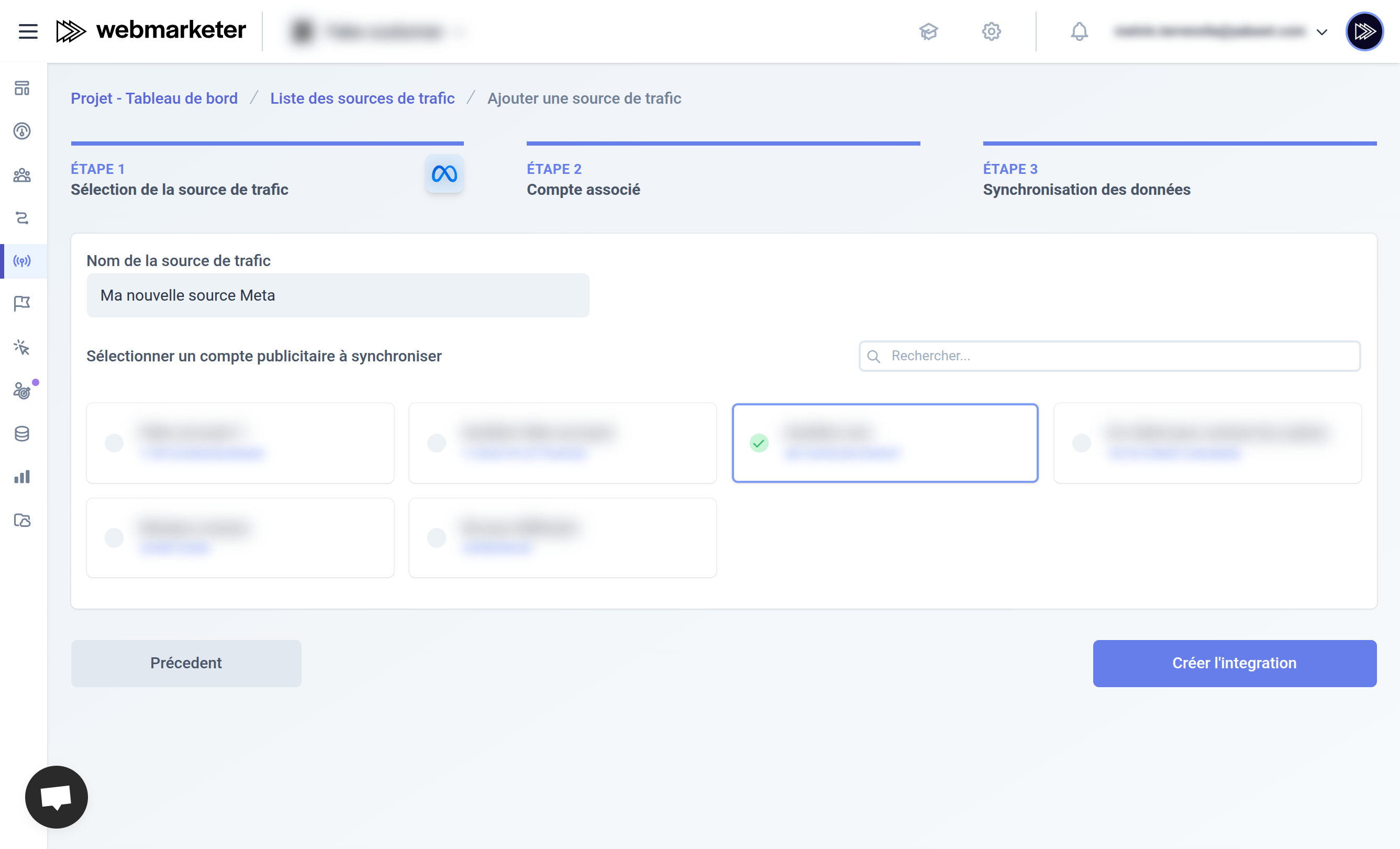
Once the user account is selected, you then have to choose the ad account to import into Webmarketer. You can only import one ad account per traffic source.
What's next?
Now that your traffic source is added, you have to configure the URL parameters of your campaigns in the ad platform.
Those URL parameters are essential for Webmarketer to identify the ad an interaction originated from, so it is very important to get this configuration right.
You will find a configuration guide for the various ad platforms. If a guide is not available yet for your platform, feel free to contact support.
If the URLs of your campaigns are misconfigured in the ad platform, some data may not be available in Webmarketer.
Troubleshooting
Adding these traffic sources lets Webmarketer synchronize the data coming from the ad platform (nodes, ad spend) every day, so you can track the performance of your campaigns. That synchronization happens automatically. Some actions may nevertheless be required, depending on the platform and/or your accounts:
- The connection to your ad platform account has expired, in which case you are asked to sign in again to renew the link
- The permissions you granted Webmarketer when connecting are not sufficient, in which case you have to accept the application's authorizations again
Through its notification and alert system, Webmarketer warns you of any event that could affect the proper collection of your websites' data, and prompts you to take the necessary action whenever there is a problem.